
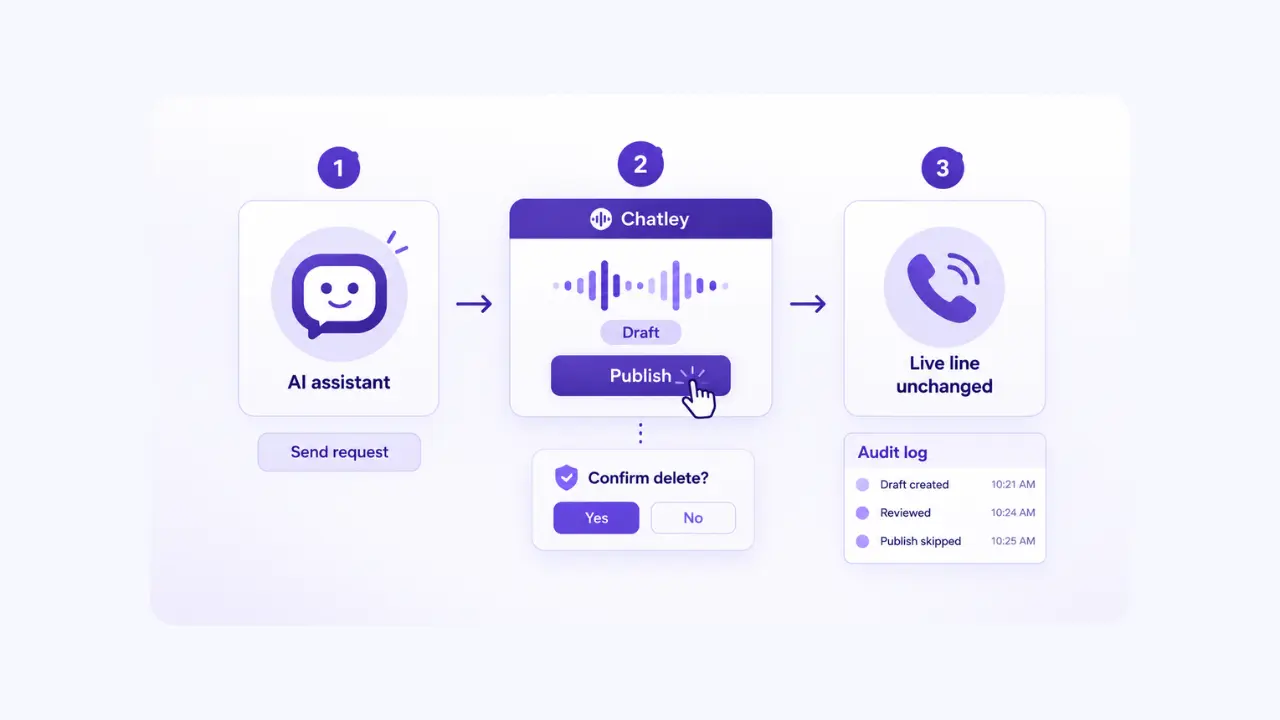
You can now ask Claude, Claude Code, Cursor or ChatGPT to review your calls, read transcripts, and change your AI voice agents through the Chatley MCP server, without opening the dashboard. Before you say yes, 3 things matter most, which are what happens to your live phone line, your data and your budget if the assistant gets something wrong.
This post follows 8 everyday situations, from updating a greeting to letting a voice agent look up an order. Each one shows what Chatley does, so you can see the protection from your side of the screen.
Why agents need different guardrails than people
An AI agent works fast, repeats itself when something fails and doesn’t pause before an irreversible step. A person clicking through a dashboard does.
Chatley built the MCP server around that difference. Several of its behaviors are deliberately less convenient than the dashboard, and that is the protection.
8 situations and what Chatley does in each
1. You ask the assistant to rewrite your greeting
You tell Claude to shorten the greeting and add your Saturday hours. It makes the edit, but your callers don’t hear it.
Changes to a voice agent are saved as a draft. The agent keeps answering calls exactly as before until publish_agent_draft is called. A mistaken update_agent is a bad draft, not an outage.
2. You want a summary of yesterday’s calls
This is the best first task. Ask the assistant to list yesterday’s calls, read the transcripts and flag the ones where the caller asked for a person.
These are read tasks. In Claude, reads are approved automatically, so you get the answer without a string of permission prompts. A member account is enough for this kind of analytics work.
3. You published nothing and a caller says nothing changed
The opposite problem shows up too. A draft that is never published never takes effect.
If a caller reports the old greeting, ask the assistant to run get_agent and check for an unpublished draft. The fix is usually one review and one publish.
4. You ask the assistant to remove something
Destructive tools need 2 calls. The first returns what would be removed and changes nothing. Only a second call carrying confirmed: true removes anything.
Chatley enforces this on its side, not in your client. A client that sends confirmed: true on the first call is still refused. A person sees the list in between.
5. You say “delete the old agent and clean out my contacts”
Some tools don’t exist. Chatley doesn’t expose deleting a voice agent, a knowledge base or a contact, and it has no update-everything-matching-a-filter operation.
These are the actions where one confused call does the most damage. Do them in the dashboard, where you can see exactly what you’re about to lose.
6. A teammate or a wrong account ID tries to reach too far
Every call is checked against what your connection can actually reach. The tools you see reflect your Chatley role, so an assistant connected with a member account can’t do owner tasks by asking differently.
If you administer several accounts, tools accept an account parameter. Naming an account is a request, not permission. Chatley checks on every call that your connection administers that account. An account ID that belongs to someone else is refused, and the attempt is recorded.
7. The assistant gets stuck in a retry loop
Assistants retry when something fails. Requests are rate limited per connection and per account, so one assistant in a loop can’t exhaust your capacity or crowd out your dashboard.
When a limit is reached, the call returns a rate_limited error with the time to wait. Waiting is the right move. Retrying right away makes the wait longer, and an agent that hammers the server stays limited.
8. Your voice agent looks up an order during a live call
This runs in the other direction. A Chatley voice agent can call tools on an MCP server you run, such as an order status lookup, while a customer is on the line. The setup lives in MCP Connectors.
The agent can reach only the tools you selected for it, over HTTPS, from the list found at the last discovery. A tool you add to your server later stays out of reach until you choose it. Attach the smallest set the job needs. An agent that answers order questions needs a lookup tool, not a refund tool.
What happens to your data
Your data stays inside your role and your account, as situation 6 shows. Two more protections apply.
Tool responses never contain API keys, tokens, credentials or the secrets of any service you connected. This holds for error messages too. A failure deeper in the system is translated into a Chatley error before it reaches your assistant.
Every tool call is also written to your audit trail. The record shows which connection made the call, which account it ran in, which tool it used and what came of it. Arguments are stored as a fingerprint rather than in full, so you can see what was done without the contents being kept. The record doesn’t depend on your client keeping its own logs.
What happens to your budget
Rate limits cap how much one connection can do, as situation 7 shows. Drafts and 2-call deletes keep a single wrong instruction from turning into a costly one. If an assistant makes a mistake, the damage stays small and the undo stays easy.
How to connect Chatley safely, step by step
The setup takes a few minutes. The order below keeps the risk low while you learn what your assistant does.
Add the server address mcp.chatley.ai/mcp over HTTPS as a remote MCP server in Claude, Claude Code, Cursor or ChatGPT. Plain HTTP requests are rejected.
Sign in to Chatley in the browser window and read the approval screen, which names the client and the account. There is no key to copy or paste.
Connect with the lowest role that can do the work, such as a member account for call analytics.
Start with read tasks such as listing calls and reading transcripts. In Claude, reads are approved automatically and Claude asks you before anything that changes data.
Review each draft before you publish it.
Check Connected apps and the audit trail on a regular schedule, and revoke connections you no longer use.
The Connecting a client guide covers each client in detail.
A short checklist before you go live
Your connection uses the lowest role that fits the task.
You’ve run read tasks for a week and the results look right.
You know where drafts appear and who publishes them.
Your voice agents have only the tools their job needs.
You’ve opened Connected apps and the audit trail at least once.
Connect your assistant to Chatley
Once connected, your assistant can list calls, read transcripts, review analytics, configure AI voice agents and manage knowledge bases without you opening the dashboard. Every one of those actions runs inside the protections described above, which means you can hand routine account work to an AI tool and still decide what goes live, what gets removed and who can do what.
MCP Server documentation for the full tool list, or start with Chatley and connect your first client today.